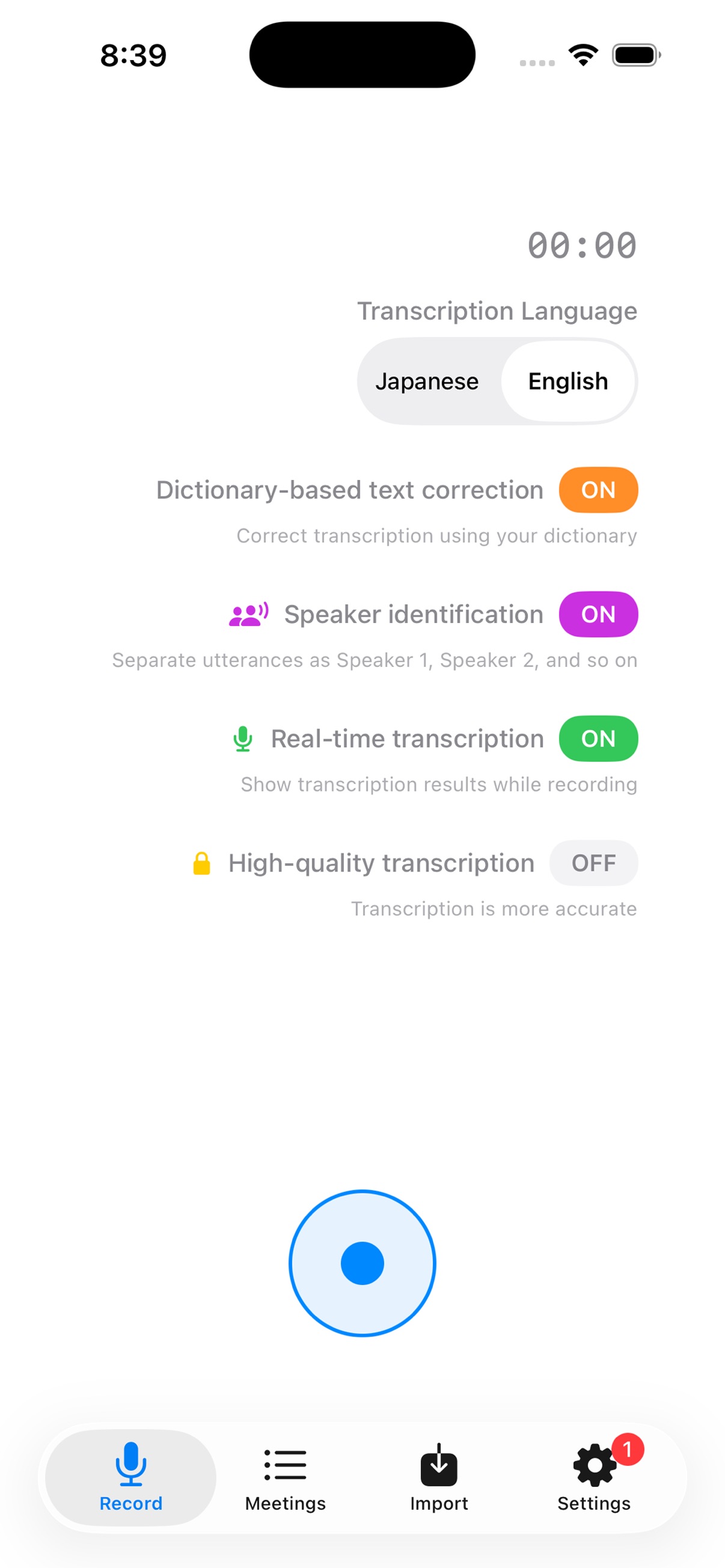
Follow along as you record
Real-time transcription displays text during recording, so you can check the recognized words while listening.
Voice Memo for iPhone & iPad
It is hard to listen and take notes at the same time.
Turn recorded conversations into transcripts, summaries,
decisions, and next steps.
“What did we decide?”
You do not have to listen
from the beginning again.
After a meeting, replaying the audio, finding decisions, and noting owners and deadlines takes time. Transcripts, summaries, and questions to AI help you work through that follow-up.
Start with a summary and key points from a long discussion. Read the transcript to check a specific comment, or ask AI, “Who needs to do what next?”
Draft meeting notes, update your team, review an interview, or revisit a lecture. Keep more than a recording: find the information you need and turn it into a record you can share.
Three steps to a useful record
Tap record and focus on the discussion. Pause and resume as needed, or import audio and video files you already have.
Check the details in the transcript and the big picture in the summary. Revisit decisions and tasks in the key points, and correct errors against the original audio.
Processing time and accuracy depend on the audio and network conditions.
Send reviewed transcripts and summaries to email or chat through the sharing feature. Use them for meeting follow-ups and first drafts of minutes.
Fictional meeting example
“Let’s aim to launch on the 10th of next month. The signup page copy still needs a review.”
“I’ll revise it by Friday. Could Sales check the pricing wording?”
“I’ll handle that. Let’s do a final review together next Monday, then prepare for launch if everything looks good.”
Organize dates and tasks scattered through a conversation with summaries and key points. Check the original statements as you prepare a record to share.
Planning the new service launch
Revise the signup page and verify pricing wording ahead of the planned launch on the 10th of next month. Hold a final review next Monday.
The final pricing wording. Check with the people involved when the conversation alone does not settle a question.
“What is left to do before launch?”
Revise the signup page, confirm the pricing wording, and complete next Monday’s final review.
Useful after you stop recording, too
Real-time transcription displays text during recording, so you can check the recognized words while listening.
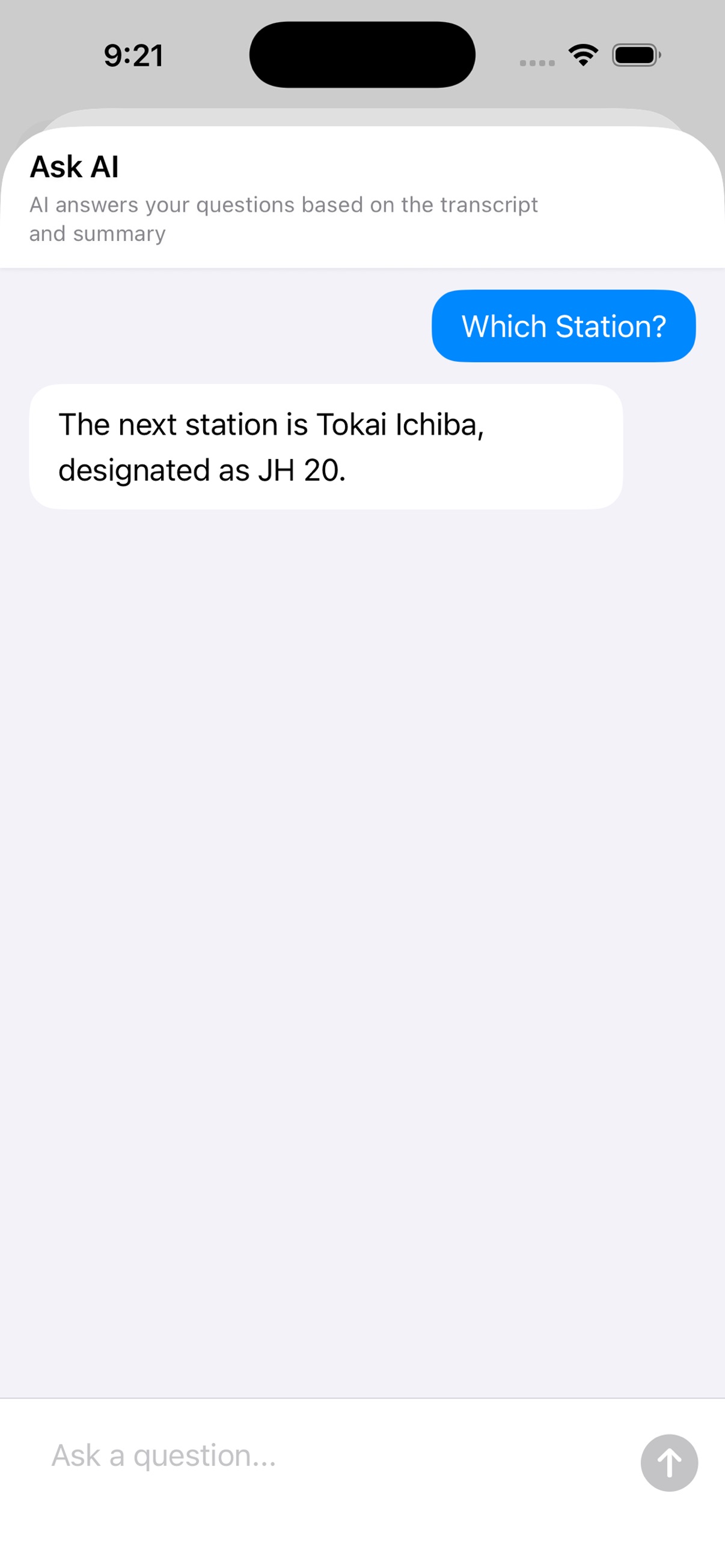
“What did we decide?” “What comes next?” Ask AI questions based on the transcript and summary before rereading the whole record.
Register names, companies, products, and specialist terms. Dictionary-based correction helps you review misrecognized proper nouns.
Import audio and video files for transcription, including recordings made outside the App.
Features and usage limits vary by plan. Check the in-app purchase screen before subscribing.
A closer look inside the app
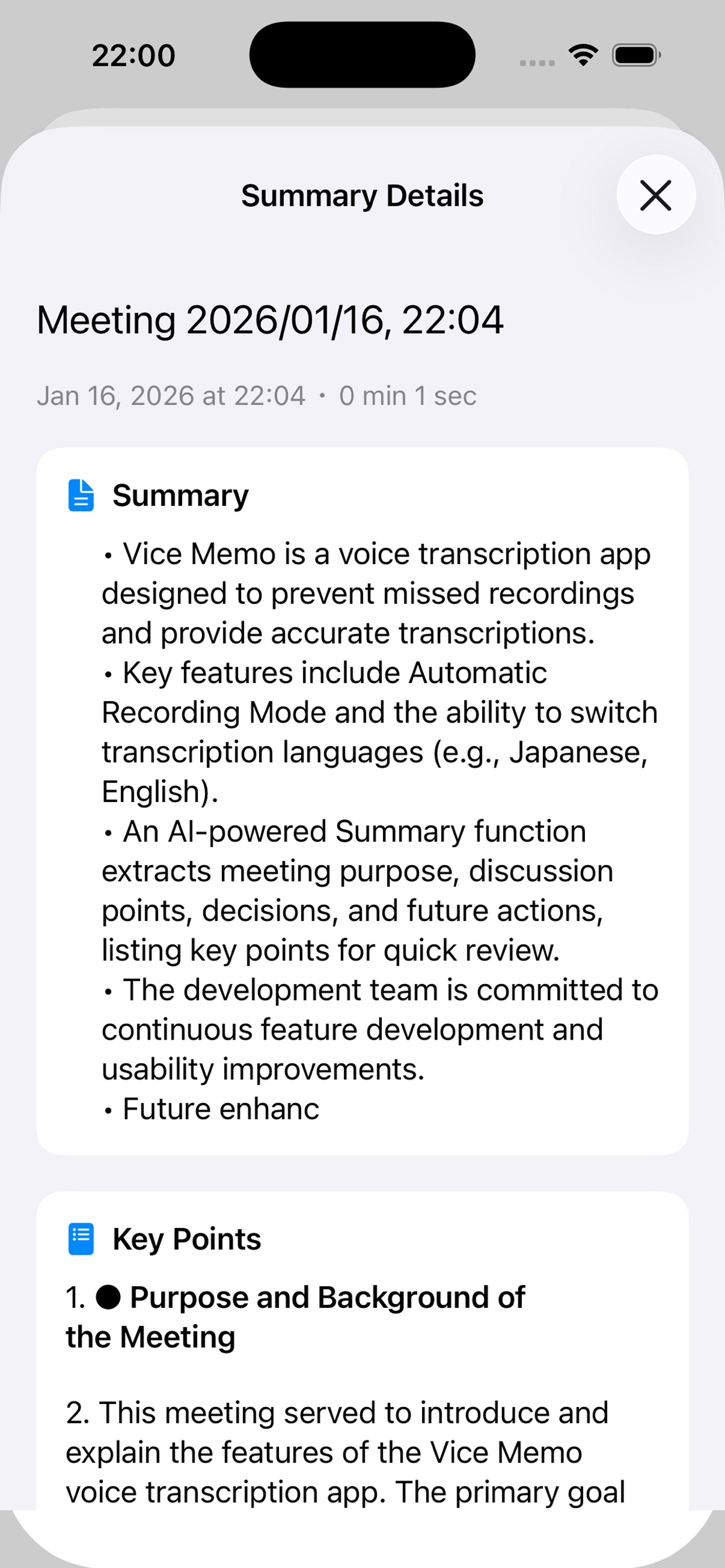
A recording is a starting point. Read the summary to get your bearings, then ask AI a question based on the transcript and summary.
Open Summary Details to read the summary and key points together. Use them to revisit a discussion before returning to the full transcript.
Use Ask AI to check something specific in a recording. Type a question and get an answer based on the transcript and summary.
Frequently asked questions
The App is free to download and also offers paid auto-renewing subscriptions. Features and usage limits vary by plan. Check the in-app purchase screen for current terms.
Transcripts, summaries, speaker identification, and AI answers may contain errors or omissions. Check names, numbers, and decisions against the original audio before sharing.
The App does not directly integrate with meeting tools. You need a setup that can capture the audio, such as recording another device’s speaker through your device’s microphone. Recording may not work with headphones or calls on the same device.
Recordings and meeting notes are stored locally, while data is also sent to and temporarily stored in the cloud for AI processing. Deleting data on your device does not necessarily delete server-side information at the same time. Read the Privacy Policy for details.
No. Manage your subscription in your Apple Account’s Subscriptions settings on your iPhone or iPad.
Start with your next meeting